Sunday, 30 September 2012

How to Add Google+ Page Badge to your Blogger blog


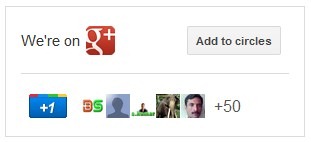
The badge lets users add your Google Plus page to their circles without leaving your blog,its like Facebook’s Like Box, but better. Google+ badge will not only promote your awesome blog on Google+ , but will help it rank in Google search results as well.

Adding Google+ page badge

  • Go to Design > Page Elements.
  • Click Add Gadget and select HTML/Javascript gadget.
  • Copy the code below ,  paste it  in that box.
<!-- Google +1 script --> <script type="text/javascript"> (function() { var po = document.createElement('script'); po.type = 'text/javascript'; po.async = true; po.src = 'https://apis.google.com/js/plusone.js'; var s = document.getElementsByTagName('script')[0]; s.parentNode.insertBefore(po, s); })(); </script> <!-- Link blog to Google+ page --> <a style='display: block; height: 0;' href="PUT YOUR G+ PAGE URL HERE" rel="publisher">&nbsp;</a> <!-- Google +1 Page badge --> <g:plus href="PUT YOUR G+ PAGE URL HERE" height="131" width="300" theme="light"></g:plus>
  • Replace PUT YOUR G+ PAGE URL HERE with the URL of your Google+ page.
  • To get the page URL: Login to Google+ > Switch to your page via the dropdown menu on top left corner of your screen right under your profile name > Get the URL from your browser’s address bar.

II) Customizing Google + page badge

Currently you can only customize the size of the badge,  by setting the size attribute on the badge tag in line 12.


Size
Badge
Size attribute
Big
Google plus page big badge
badge
Small
Google plus page small badge

Saturday, 29 September 2012

How to change Comments Avatar Image size in blogger


This is a Quick Trick to Show the Blogger Comment Avatar Image Properly. I saw in many blogs Comments avatars. those are Improper in size. This is because of the CSS of both Default Comments System and Threaded Comments. which are present in your template and showing the avatar image improperly. here is the Quick Tip with css to Reset the Avatar image and Style the Image.


How to Fix The Improper Blogger Comments Avatar Image?

This is Reset CSS for Comment Avatar Image and is works for both Default Comment System and Threaded Comments System.
  1. Login to Blogger Dashboard > Choose your Blog and Click the More Options Dropdown
  2. Select the Template > Click on Edit HTML > Proceed
  3. Search for ]]></b:skin> and place the below code before it! 

.avatar-image-container,
.avatar-image-container img{
max-width:50px !important;
width:50px !important;
max-height:50px !important;
height:50px !important;
padding: 0 !important;
border:0px;
}
 
 
Note: Default size it set to 50px. if you want Change the avatar size then simply modify the above CSS.

Rounding the Blogger Comment Avatar

How to Rounding the Blogger Comment Avatar Image?

In comment someone asked me to Rounding the Avatar image in blogger comments. here is the CSS for it!

this css will reset the avatar size to normal and rounds the Image.(so don’t use the above CSS)
Search for ]]></b:skin> and place the below code before it!

.avatar-image-container,
.avatar-image-container img {
max-width: 50px !important;
width: 50px !important;
max-height: 50px !important;
height: 50px !important;
padding: 0 !important;
border: 0px;
-webkit-border-radius: 999px;
-moz-border-radius: 999px;
border-radius: 999px;
}


.avatar-image-container{
border:3px solid #fff !important;
-webkit-box-shadow: 0 1px 2px #BBB;
-moz-box-shadow: 0 1px 2px #BBB;
box-shadow: 0 1px 2px #BBB;
}
Note: Default size it set to 50px. if you want Change the avatar size then simply modify the above CSS.

If this post is helpful to you? then please share it! Thanks!.
Leave your comments. → :D

Monday, 24 September 2012

Simple Fog Effect for Blogger post Image

Maybe you are boring with the image on your blog. Because the image does't has any effect. Now we will add some effect to your image. That's Simple Fog Effect for Blogger Image. Usually fog effect can be called with "Blur". The effect is when you put your cursor on the image, the image will be foggy. See the demo

blogger icon


Nice right? OK, if you want to try Simple Fog Effect for Blogger Image, just follow the steps below.

1. Log in to your blogger icon

2. Go to Design --> Edit HTML

3. Copy the code below, and paste above ]]></b:skin>

.truebloggertricks-blur img {filter:alpha(opacity=100); -moz-opacity:1.0; opacity:1.0; border:0;}
.truebloggertricks-blur:hover img {filter:alpha(opacity=30); -moz-opacity:0.3; opacity:0.3;border:0;}
4. Click SAVE TEMPLATE

Then to "call" the effect just add some code, so the image code will be like this

<a class="truebloggertricks-blur" href="http://truebloggertricks.blogspot.com/"><img alt="blogger icon" border="0" src="YOUR IMAGE URL" /></a>

So easy right?

How to Add Drop Shadows Effect to Images in blogger

With drop shadows effect to images, our blog images will given a kind of shadow which will surround beside the images. So, the images will look attractive. This effect is active when you put your cursor on the picture, then the picture will expand and there are drop shadows effect. For additional info, drop shadows effect is used CSS (CSS 3), so your blog is not too heavy. Now, if you want to know how to add drop shadows effect to images, just follow the steps below.

1. Log in to your blogger account

2. Go to Design --> Edit HTML

3. Copy the code below, and paste above ]]></b:skin>

.truebloggertricks-CSS3 img{
-webkit-transform:scale(0.7); /*Webkit 0.7 times the original Image size*/
-moz-transform:scale(0.7); /*Mozilla 0.7 times the original Image size*/
-o-transform:scale(0.7); /*Opera 0.7 times the original Image size*/
-webkit-transition-duration: 0.5s; /*Webkit: Animation duration*/
-moz-transition-duration: 0.5s; /*Mozilla Animation duration*/
-o-transition-duration: 0.5s; /*Opera Animation duration*/
opacity: 0.5;
margin: 0 10px 5px 0;
}

.truebloggertricks-CSS3 img:hover{
-webkit-transform:scale(1.1); /*Webkit: 0.5 times the original Image size*/
-moz-transform:scale(1.1); /*Mozilla 0.5 times the original Image size*/
-o-transform:scale(1.1); /*Opera 0.5 times the original Image size*/
box-shadow:0px 0px 30px gray;
-webkit-box-shadow:0px 0px 30px gray;
-moz-box-shadow:0px 0px 30px gray;
opacity: 1;
}
4. Then, when you will use drop shadow effects to images, use this code
<div class="truebloggertricks-CSS3">
<img src="IMAGE URL" />
</div>
=> Change IMAGE URL with your image URL choice

5. Done!

How to add Zoom Hover Effect to Image in blogger

Hi friends! Maybe you've heard about How to Add Drop Shadows Effect to Images. Now, we will make new effect. That's Add Zoom Hover Effect to Image. Shortly, when you put your cursor on an image, the image will be zoom (larger). Do you want to try the demo? OK, this is it. And if you want to know how to make the effect, just follow the steps below.
1. Log in to your blogger account

2. Go to Design --> Edit HTML

3. Copy the code below, and paste above ]]></b:skin>

.hovergallery img{
-webkit-transform:scale(0.8);
-moz-transform:scale(0.8);
-o-transform:scale(0.8);
-webkit-transition-duration: 0.5s;
-moz-transition-duration: 0.5s;
-o-transition-duration: 0.5s;
opacity: 0.7;
margin: 0 10px 5px 0;
}

.hovergallery img:hover{
-webkit-transform:scale(1.1);
-moz-transform:scale(1.1);
-o-transform:scale(1.1);
opacity: 1;
}
4. Then if you want to active the effect, use this code
<a class="hovergallery" href="http://truebloggertrick.blogspot.com/" target="_blank">
<img src="http://1.bp.blogspot.com/-ycrEcnVzJAs/TcXGWwcjL3I/AAAAAAAAAYQ/MiQNmK44ZOg/s200/fullblogtricks-blogger-icon.jpg" /></a>
=> Replace the blue code with your link
=> Replace the red code with image URL

5. Finish... Hopefully useful..

Adding bubble comment in blogger


Well its pretty clear in the title that this tutorial helps you on adding a comment count bubble next to your blogger post titles as you can see the live demo of it on the homepage of my blog. Showing comments count on your blogger blog posts really helps you in building more number of commentators and active community on your blog. So nothing is left to talk about blogger comment section. Let's jump to the tutorial on adding bubble comment count to blogger post titles.


 How to add this to the blogger:


1. Go to blogger dashboard --> Template --> Edit Html(Tick expand widget template option).

2. Search(Ctrl+F) for ]]></b:skin> and paste the following peace of code just above it.
.comment-bubble {
float : right;
width : 48px;
height : 48px;
background : url(http://2.bp.blogspot.com/-7FFIKA34Kvw/T4x9E0RmA0I/
AAAAAAAAALI/03AG305CesI/s1600/speech+bubble+green.png
);
background-repeat: no-repeat;
font-size : 18px;
position:absolute;
margin-top : -15px;
margin-right : 2px;
text-align : center;
}

Bubble icon choose

I have listed some of the nice looking bubble icons below. right click on your desired icon and click on copy image URL and replace the above highlighted Url with your copied Url.

Bubble Comment Count in bloggerBubble Comment CountBubble Comment CountBubble Comment CountBubble Comment CountBubble Comment CountBubble Comment Count for bloggerBubble Comment CountBubble Comment CountBubble Comment CountBubble Comment CountBubble Comment CountBubble Comment CountBubble Comment CountBubble Comment CountAdd Bubble Comment CountShow Bubble Comment CountHow to add Bubble Comment Countbubble comment bloggerbubble comment bloggerbubble comment bloggerbubble comment bloggerbubble comment bloggerbubble comment bloggerbubble comment bloggerbubble comment bloggerbubble comment bloggerbubble comment bloggerbubble comment bloggerbubble comment count, bubble blogger postsblogger comments, comment countblogger blogspot, blogger commentsblogger bubble comment countcomments in blogger titlesblogger tips, blogger tricksblogger widgets, bubble comment countbubble comment countBubble Comment CountBubble Comment Count, blogger blogspot


Bubble Comment count script

3. Now find for this code
 class='post-title entry-title'

4. Add the following peace of code just below it.
<b:if cond='data:post.allowComments'>
<a class='comment-bubble' expr:href='data:post.addCommentUrl' expr:onclick='data:post.addCommentOnclick'><data:post.numComments/></a>
</b:if>

5. Save your Template and view your blog.

For further assistance kindly leave your question in the comment section below and I would be pleased to help you on it.